Added in 1.28.0
Share your screen.
Show the people in your voice channel what’s on your screen: all of it, part of it, one window or one app, with sound if you like. You can share from Windows, and watch on any computer or phone.
Start sharing
- Join a voice channel.
- Click Share screen, next to Mute and Deafen.
- Pick what to share from the tabs:
- Applications: all of an app’s windows.
- Windows: just one window.
- Screens: a whole screen. To share only part of it, click Select a region… under it, then drag out the area you want.
- Click Share.
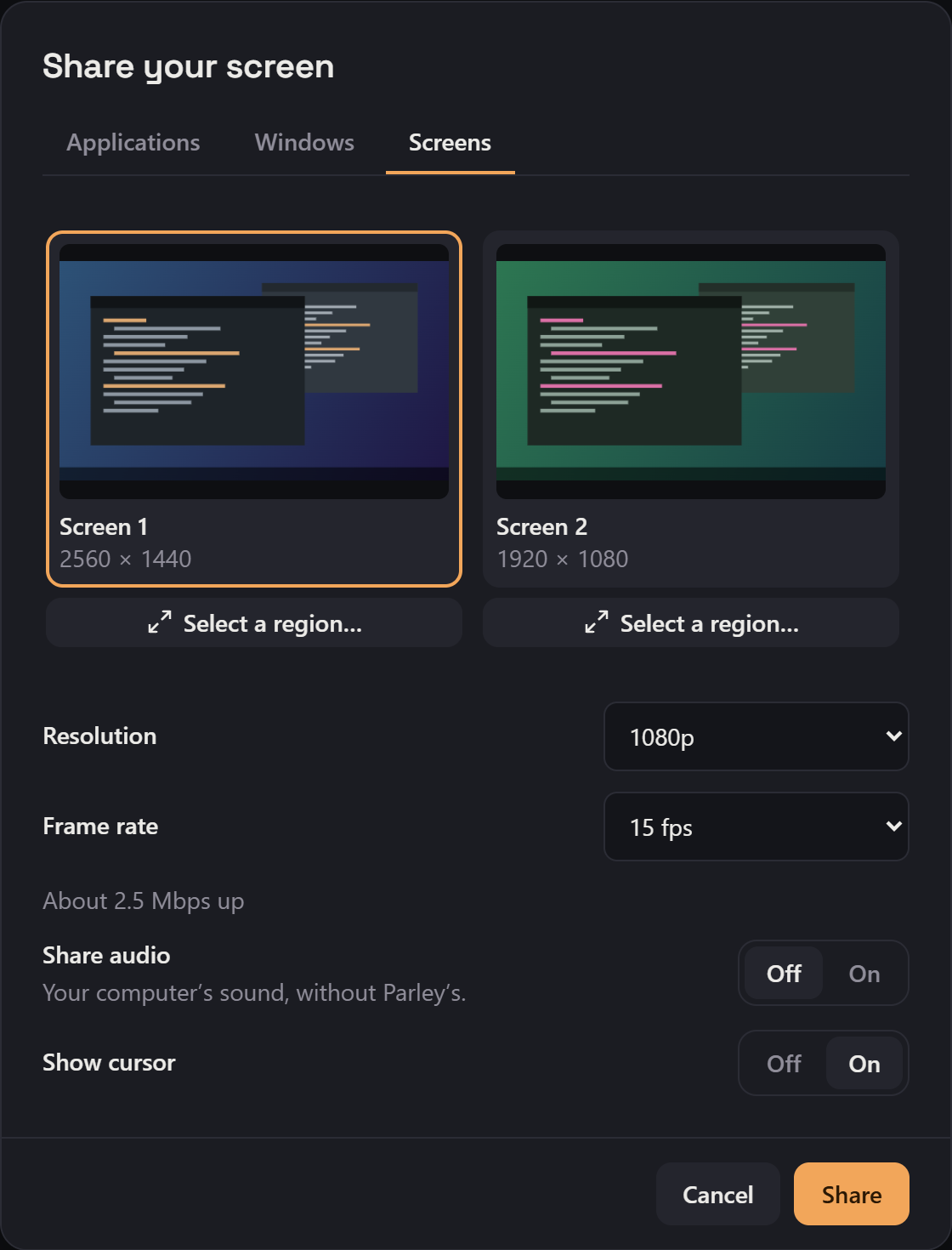
Before you click Share, you can also:
- Turn Share audio on, so people hear it too.
- Turn Show cursor off, to hide your mouse pointer.
- Change the Resolution and Frame rate. Higher is sharper and smoother, but needs a faster connection.
Nobody sees Parley itself in your share.
No Share screen button? You need Windows 10 or later, and the server has to let you share in that channel.
While you share
An outline shows what people can see. A small toolbar at its top lets you:
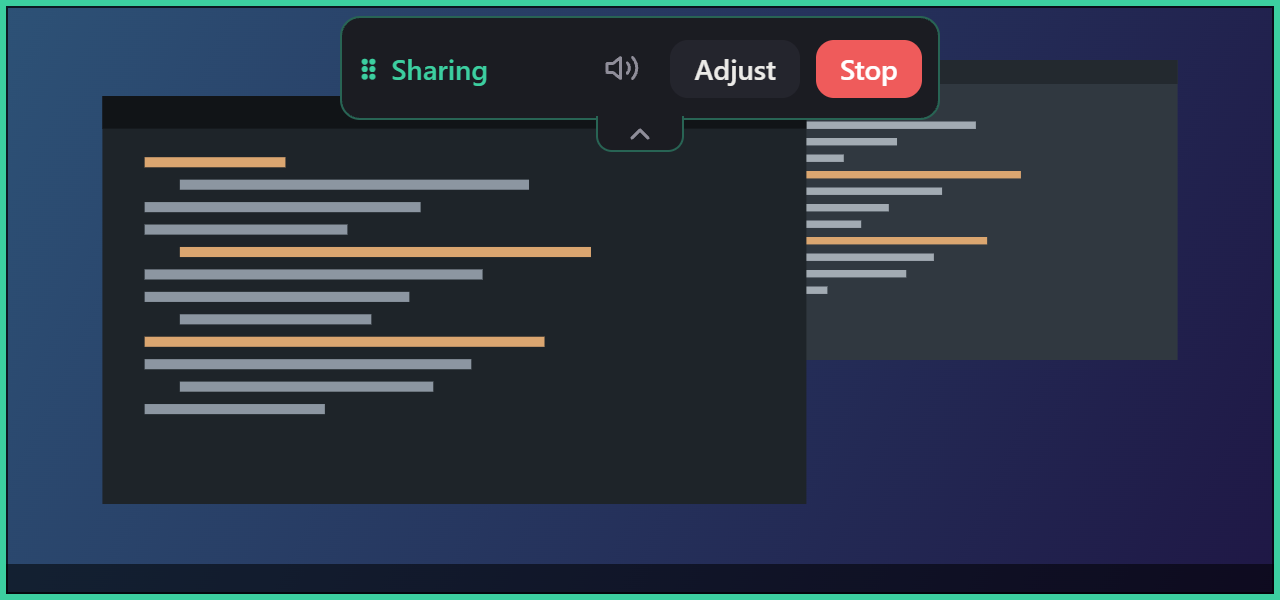
- Mute the shared sound. You can still hear it yourself.
- Adjust: share something else, or change the quality, without stopping.
- Stop sharing.
If the toolbar is in your way, fold it up with the little tab underneath it.
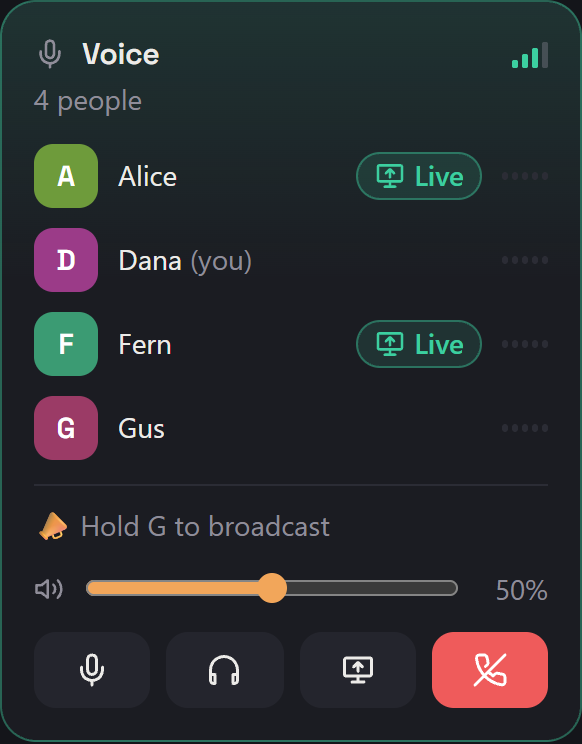
You can also stop from the Voice card, or set a Stop sharing key in Settings → Voice & audio. Your share also stops when you leave voice.
Watch someone’s screen
When someone is sharing, Live shows next to their name. Click it to watch.
Their screen opens above the chat. To make it bigger or smaller, drag its bottom corner.
Move your mouse over their screen to:
- change its volume
- pop it out into its own window, which you can keep on top
- go full screen (or just double-click it)
- stop watching
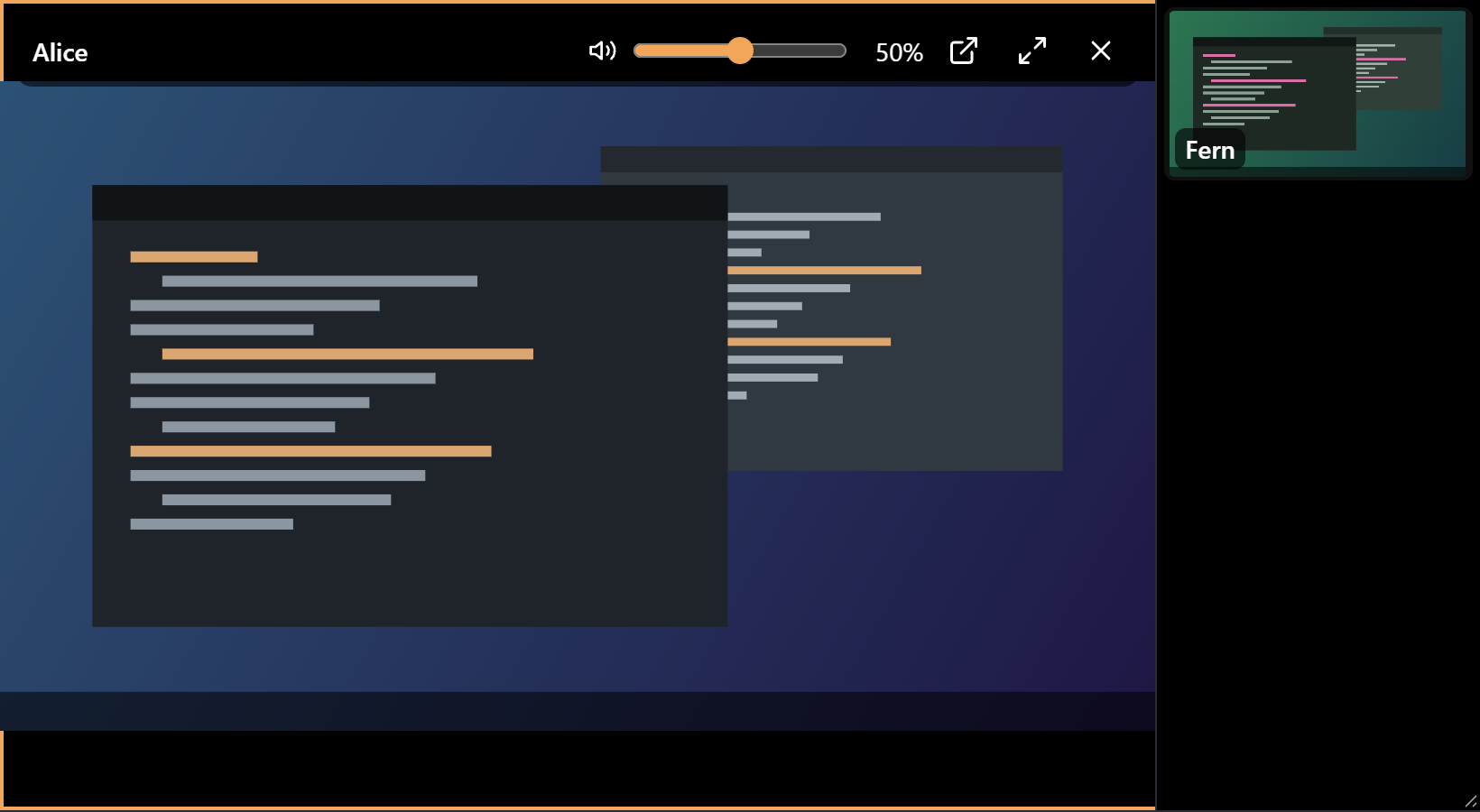
Up to four people can share at once. If you watch more than one, one is big and the others are small: click a small one to make it big.
On a phone
You can watch on a phone, but not share. Tap Live next to someone’s name. Tap their screen to show the buttons.
For server admins
- Who can share: everyone can, to start with. To turn it off somewhere, take away the Share screen permission in that channel or category.
- Stopping someone’s share: moderators can right-click the sharer and choose Stop their screen share.
- Quality: set the highest resolution and frame rate people can share at in Server settings → General → Screen share limit.