Added in 1.29.0
Your profile.
Your profile is your picture, name, banner, bio and links. You set it up once and it shows on every Parley server you use. You choose who sees each part.
Making your profile
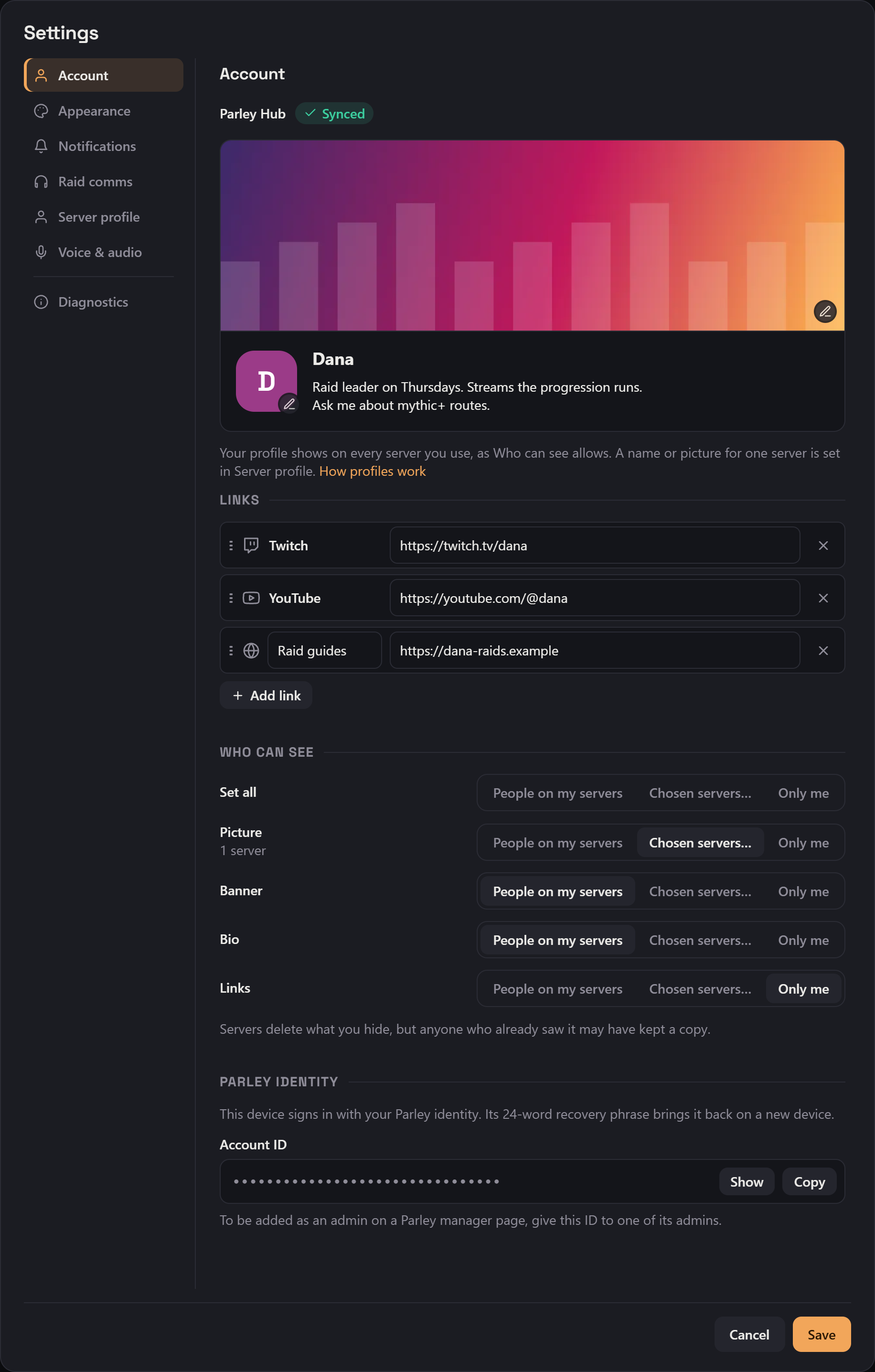
Open Settings → Account. The card at the top shows you as other people see you, and you change it right there:
- Picture: click it for Choose picture… or Remove.
- Name: click it and type a new one.
- Banner: a wide picture across the top of your card. Click it for Choose banner… or Remove. You crop it to a 3:1 strip.
- Bio: click Add a bio and write a few words about you, up to 300 characters and 6 lines. It’s plain text, so addresses in it aren’t clickable; put those in your links.
Under the card are your Links, up to 5:
- Click Add link and type the full address, starting with
https://. - Twitch, YouTube, Bluesky, Mastodon, GitHub, Steam, Instagram, TikTok and X are known: they get their own icon and name. Any other address is a website, and you give it a label of up to 32 characters.
- Drag a link by its handle to move it up or down. On a phone, press and hold it for Move up, Move down and Remove.
Click Save when you’re done. Your profile is kept by Parley Hub, which passes it on to your servers. The row at the top says how that’s going: Synced, Saving…, Connecting… or Not synced. When it isn’t synced, click Sync now to try again. Your changes stay on this device until then.
Want a different name or picture on one server? Set it in Settings → Server profile while you’re on that server. Only that server sees it.
Seeing someone’s profile
Click someone’s name to open their profile beside the chat, or right-click it for a card with what you can do. Hovering over a name shows a smaller card with a strip of their banner and the first 2 lines of their bio.
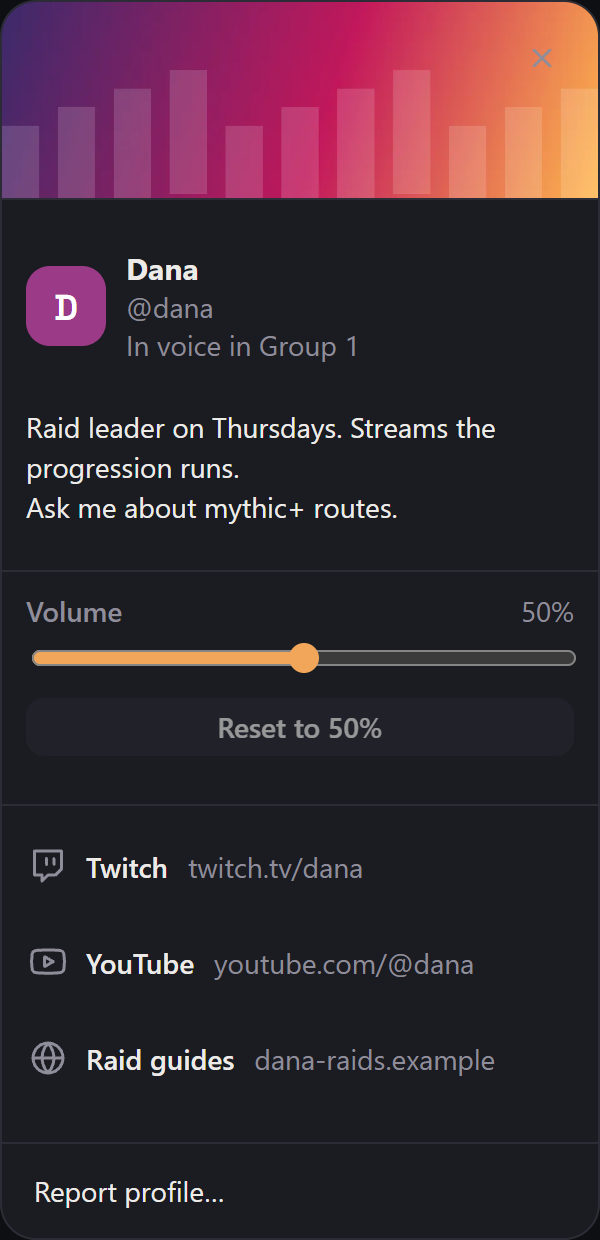
Each link shows its icon, label and the site it goes to. When you click one, Parley asks first, naming the site: Open opens it in your browser, Cancel doesn’t, and Always for the site stops asking for that site on this device. Parley doesn’t check where profile links go, so open only the ones you trust.
Each profile is signed by its owner’s Parley identity. Parley checks the signature before showing a part, so a server can’t change what someone wrote.
Who can see each part
In Settings → Account, under Who can see, each part of your profile has three buttons:
- People on my servers: everyone on any server you’re on. This is where every part starts.
- Chosen servers…: only the servers you tick. Click it, tick the servers and click Done.
- Only me: no server gets it.
Set all at the top sets every part at once. You set the Picture, Banner, Bio and Links apart. All your links share one setting. Your name isn’t on the list, because every server needs a name to show you.
Parley Hub only gives each server the parts you allow, and nothing more. Where a server can’t see your picture, you show as your initials there. Settings → Server profile says which parts that server doesn’t show.
When you hide a part from a server, it deletes its copy. But anyone who already saw it may have kept a copy.
Server admins can turn profiles off for their server, in Server settings → General, under Members. Parley profiles set to Off means the server doesn’t use Parley Hub. Banners, bios and links set to Off keeps everyone’s pictures but shows none of the rest.
Reporting a profile
If something on someone’s profile breaks the rules, report it to the server’s moderators. Right-click their name, or open their profile, and choose Report profile….
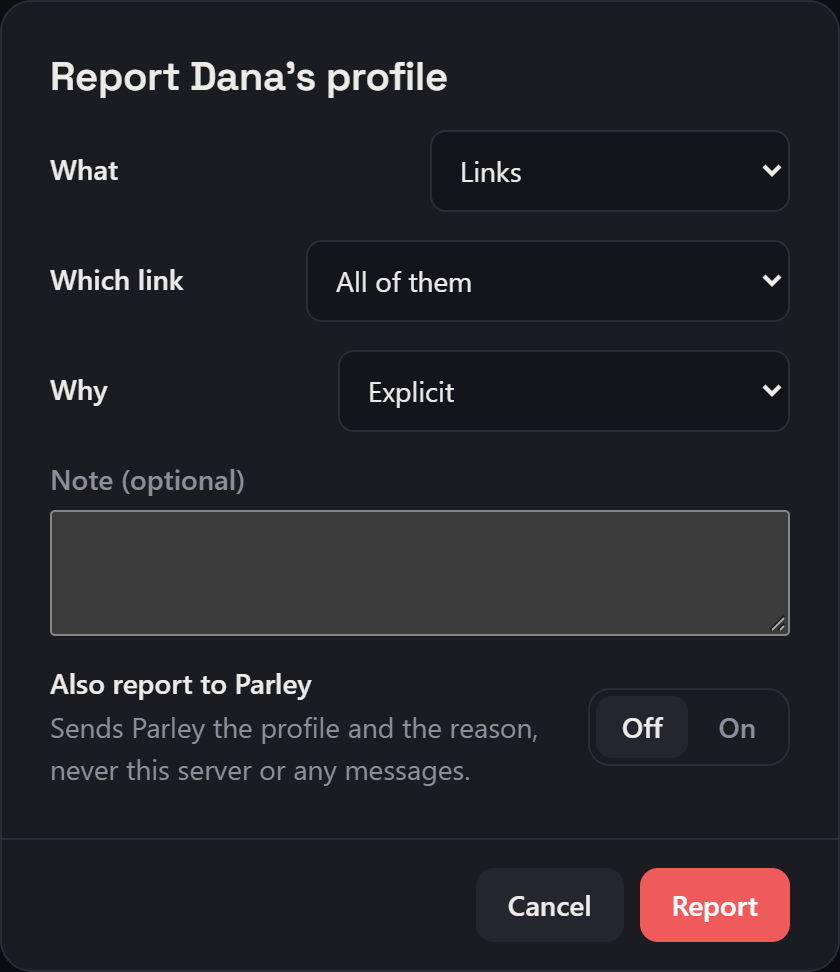
- What: the picture, banner, bio or links.
- Which link: for links, pick one by its label and address, or All of them. With only one link, the report is about that one.
- Why: Explicit, Illegal content, Harassment or impersonation, Spam or scam link, or Something else.
- Note: anything that helps, up to 200 characters. You can leave it empty.
- Also report to Parley: sends the Parley project the profile and the reason too, never the server or any messages. It’s On to start with for Illegal content and Spam or scam link.
Click Report. The report goes to the server’s Moderation queue, and moderators who are online see it straight away. You can send up to 5 reports every 10 minutes.
What moderators can do
Members with the Manage users permission can hide parts of a member’s profile on their server. Right-click the member to find:
- Hide banner…, Hide bio… and Hide links….
- Remove picture…. A removed picture can’t be used on that server again.
You can add a reason, which goes in the audit log. A hidden part stays hidden on that server, even after the member changes it, until a moderator shows it again with Show banner, Show bio or Show links…. Other servers aren’t affected. The member is told, for example A moderator hid your bio on Night Owls, and Server profile says so too.
Hide links… lets you hide one link, or a few, without hiding the rest. Tick the links to hide. Or tick All links, including any they add later to hide every link, now and later. A hidden link stays hidden when the member moves it or relabels it. Show links… lists what’s hidden, to tick and show again.
You can only do this to members whose role is lower than yours.
The Moderation queue
Reports wait in Server settings → Moderation until a moderator deals with them, so you don’t miss one while you’re offline. You see it if you have the Manage users permission. The number of open reports shows beside Moderation, and beside the server’s name at the top of the channel list. Click that number to open the queue.
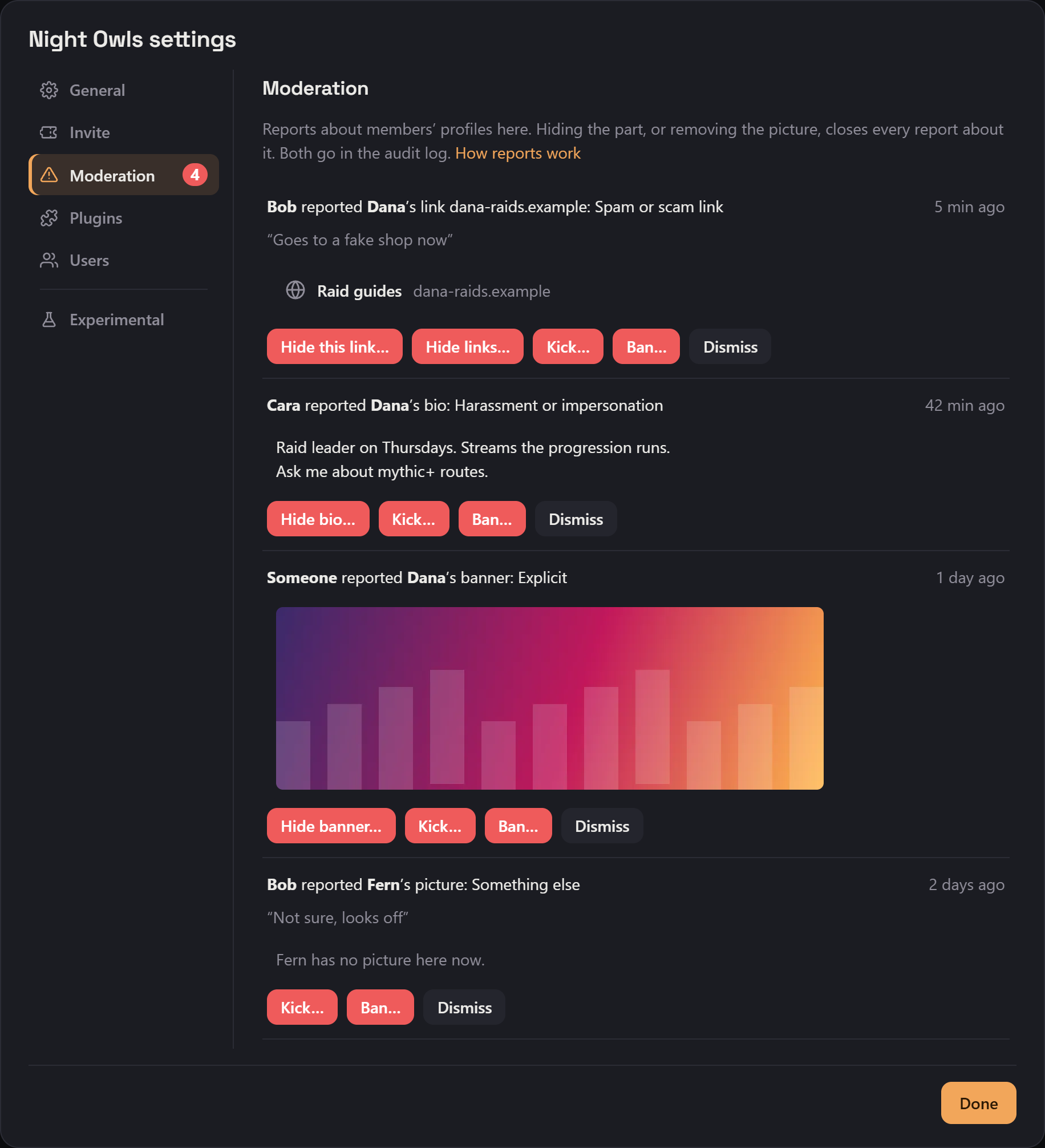
The newest reports are at the top. Each one says who reported whose part, why, and when, with their note. It shows the part as the server shows it now, or says if the member has removed it or a moderator already hid it. Then you choose what to do:
- Hide bio…, Hide banner… or Hide links…, or Remove picture… for a picture. These open the same dialogs as the member menu.
- Hide this link…, for a report about one link: Hide links… with that link already ticked.
- Kick… or Ban… the member.
- Dismiss closes the report without doing anything.
Hiding a part, or removing a picture, closes every open report about it. Hiding one link closes the reports about that link. Reports about all the links stay open while other links still show. Kicking or banning closes nothing, since the part still shows if they come back: hide it or dismiss the report as well.
Every report, hide and dismissal goes in the audit log. Choose Moderation there to see just those.
Parley also removes parts of a profile that break its rules, for every server. If that happens to yours, Settings → Account tells you.